

Chapter 7: Service Management
Foreword
We recommend that you do not use AI to do the exercises, as you are still in the learning phase.
Introduction
In this section, we will discuss service management on Linux.
Prerequisites
Same old story. 😉
Let’s begin our exploration
Services (or daemons)
Services, also known as daemons, are essential components of a Linux system. They run in the background, without direct interaction with the user, and perform tasks that are fundamental to the proper functioning of the system. In particular, they keep the system operational and add additional functionality. Generally, there are two main types of services:
System services
These are the internal services required to start the system.
They handle important hardware tasks and initialize the components essential to the operation of the operating system.
They are comparable to the engine and transmission of a car: they start as soon as you turn the ignition key and are essential for the car to move forward. Without them, the system could not function.
User-installed services
These services are added by users or administrators.
They generally include server applications or other background processes that offer specific features.
They are like car options (air conditioning, GPS, etc.): not essential for the car to run, but very useful for improving comfort or adding features according to the user’s needs.
TLDR (Let’s talk specifically about a service)
An application does not always need a service to function. However, a service plays an essential role in managing the lifecycle of an application. In particular, it allows the application to start automatically when the system boots up, or to be easily controlled (start, stop, restart) as needed. Take OpenSSH, for example, which allows remote access to a machine via the SSH protocol. Without this service, you would have to manually execute a fairly complex command each time you want to activate this feature. Furthermore, if the machine restarts, the service is accidentally interrupted, or you modify the configuration file, you would have to retype this command each time. This makes managing the application tedious and unreliable. This is where a service comes in, simplifying all this management. In the case of OpenSSH, this service is called sshd. It not only allows OpenSSH to be launched automatically at startup, but also makes it easy to manage its operation with commands such as systemctl start sshd, systemctl stop sshd, or systemctl restart sshd.
How can you recognize a daemon (a service)?
Daemon names often end with the letter d.
For example:
sshd: the SSH daemon (for secure connections),systemd: the main initialization system,httpdornginx: web daemons,crond: scheduled task manager. Just as a car relies on its essential parts and options to provide a complete experience, a Linux system uses both system services and user services to function efficiently and meet everyone’s needs.
Common objectives related to services or processes
In general, here are the main actions you want to perform with a service or process:
- Start/restart a service or process
- Stop a service or process
- See what is happening or what has happened with a service or process
- Enable/Disable a service at system startup
- Find a service or process
The role of systemd
Most modern Linux distributions use systemd to replace SystemV as the initialization system (init system).
It is the first process launched at system startup, and it has the process identification number (PID) 1.
Each process in Linux has a unique PID, which can be viewed in the /proc/ directory, where all information about running processes is stored.
A process may also have a PPID (Parent Process ID), which means that it was launched by another process, thus becoming its child process.
Commands related to service management
The systemctl command
systemctl is the main tool for managing services, units, and system startup on Linux distributions using systemd (such as Ubuntu, Debian, Fedora, Arch, etc.).
| Action | Command | Description |
|——–|———-|————-|
| List all services | systemctl list-units --type=service | Displays the list of active services |
| Start a service | sudo systemctl start service_name | Example: sudo systemctl start apache2 |
| Check if a service is enabled at startup | sudo systemctl is-enabled service_name | Example: sudo systemctl is-enabled apache2 |
| Stop a service | sudo systemctl stop service_name | |
| Restart a service | sudo systemctl restart service_name | Useful after a configuration change |
| Display the unit file for a service | sudo systemctl cat service_name | Displays the configuration file for a service |
| Reload the configuration for a service | sudo systemctl reload service_name | Without completely restarting the service |
| Enable a service at startup | sudo systemctl enable service_name | So that it starts automatically |
| Disable a service at startup | sudo systemctl disable service_name | To prevent it from starting automatically |
| Check the status of a service | systemctl status service_name | Shows whether the service is active or not |
| Hide (strongly disable) a service | sudo systemctl mask service_name | Prevents any manual or automatic launch |
| Unhide a service | sudo systemctl unmask service_name | Cancels the effect of mask |
The journalctl command
journalctl is the tool for reading system or application logs managed by systemd.
| Action | Command | Description |
|——–|———-|————-|
| View all system logs | sudo journalctl | Paginated display (use ↑ ↓ to navigate) |
| View logs for a specific service | sudo journalctl -u service_name | Example: sudo journalctl -u ssh |
| View logs in real time | sudo journalctl -f | “Tracking” mode (like tail -f) |
| View logs from a specific time | sudo journalctl --since “1 hour ago” | Possible options: yesterday, 2024-01-01, etc. |
| View logs up to a certain date | sudo journalctl --until “2024-01-01 12:00” | |
| View high priority logs (errors) | sudo journalctl -p err | Priorities: emerg, alert, crit, err, warning, notice, info, debug |
| View logs from the current boot | sudo journalctl -b | -b -1 for the previous boot |
| View logs related to a PID | sudo journalctl _PID=1234 | Replace 1234 with a process number |
| View logs sorted by priority | sudo journalctl -x | Adds useful explanations to the logs |
| Export logs to a file | sudo journalctl > logs.txt or sudo journalctl -u ssh > ssh_logs.txt | For later analysis |
As a reminder, a log is a record of events generated by an application, service, or the system.
Training ⚔️
Exercise 1 (Easy)
This exercise will consist of installing the Apache HTTP Server software, which will allow your machine to act as a web server. You will then move on to managing the service.
- Install the Apache software (the package name is apache2 on Debian distributions and httpd on RedHat distros).
- Check the status of the apache2 service.
- Start the apache2 service.
- Check the status of the apache2 service.
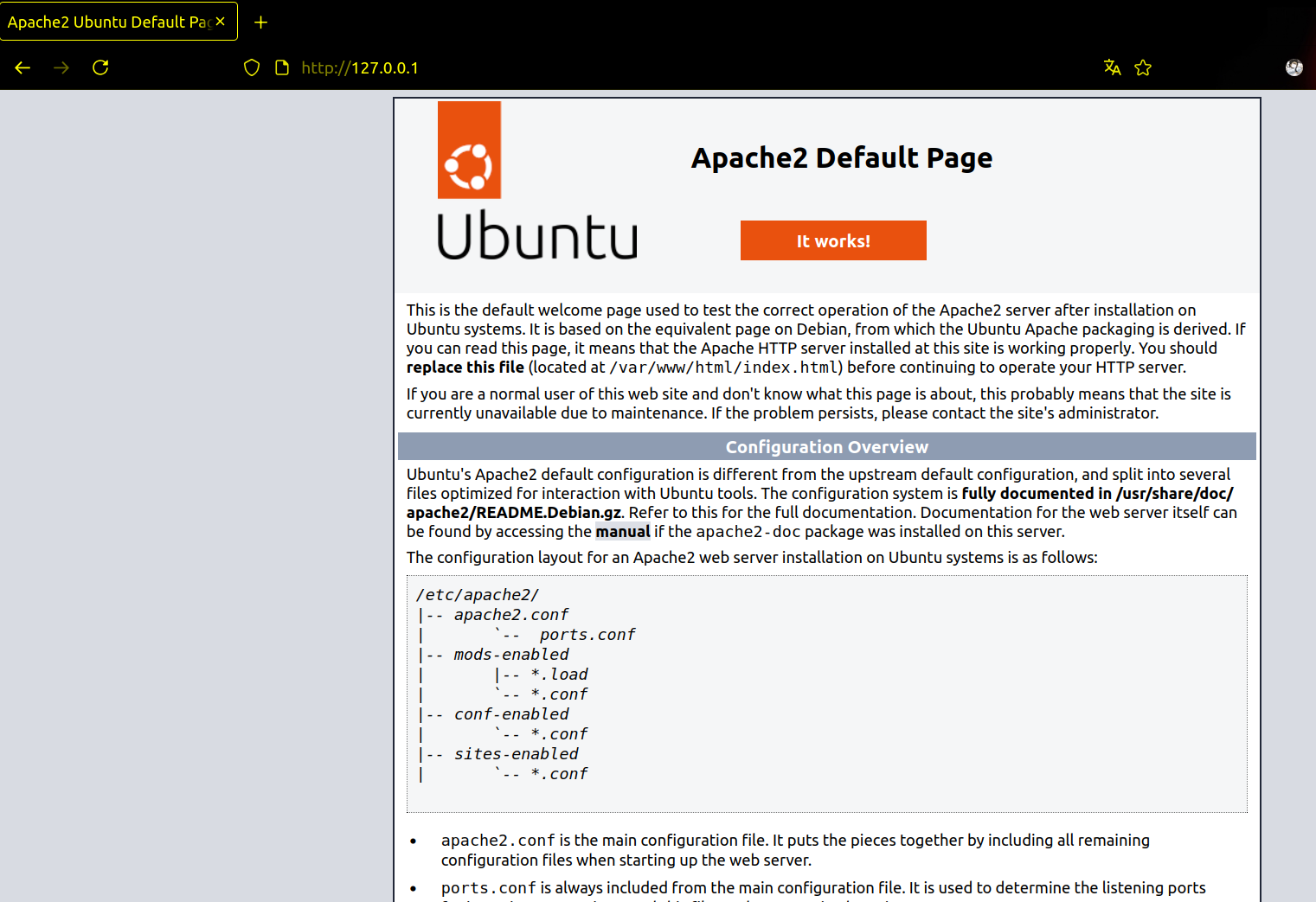
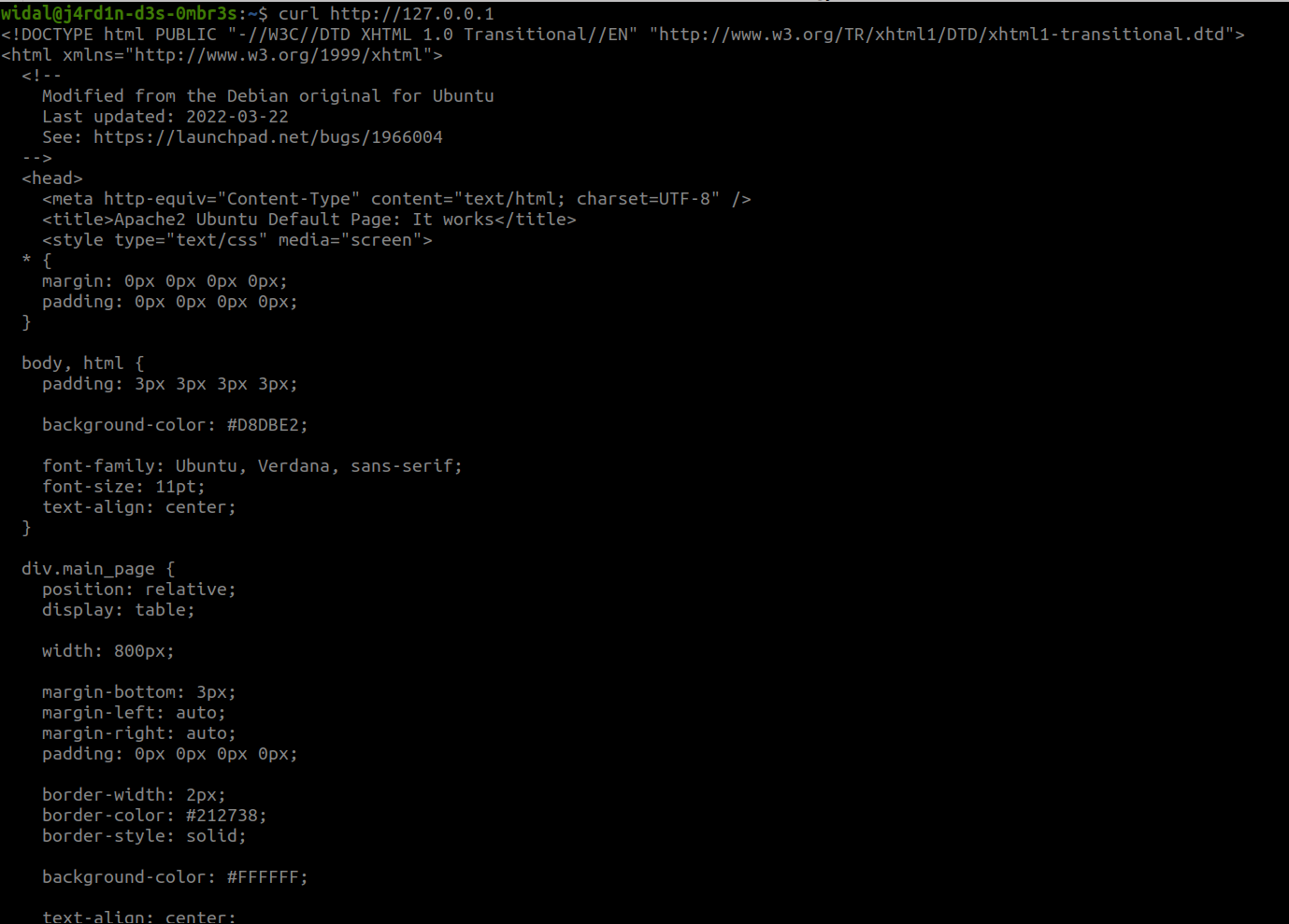
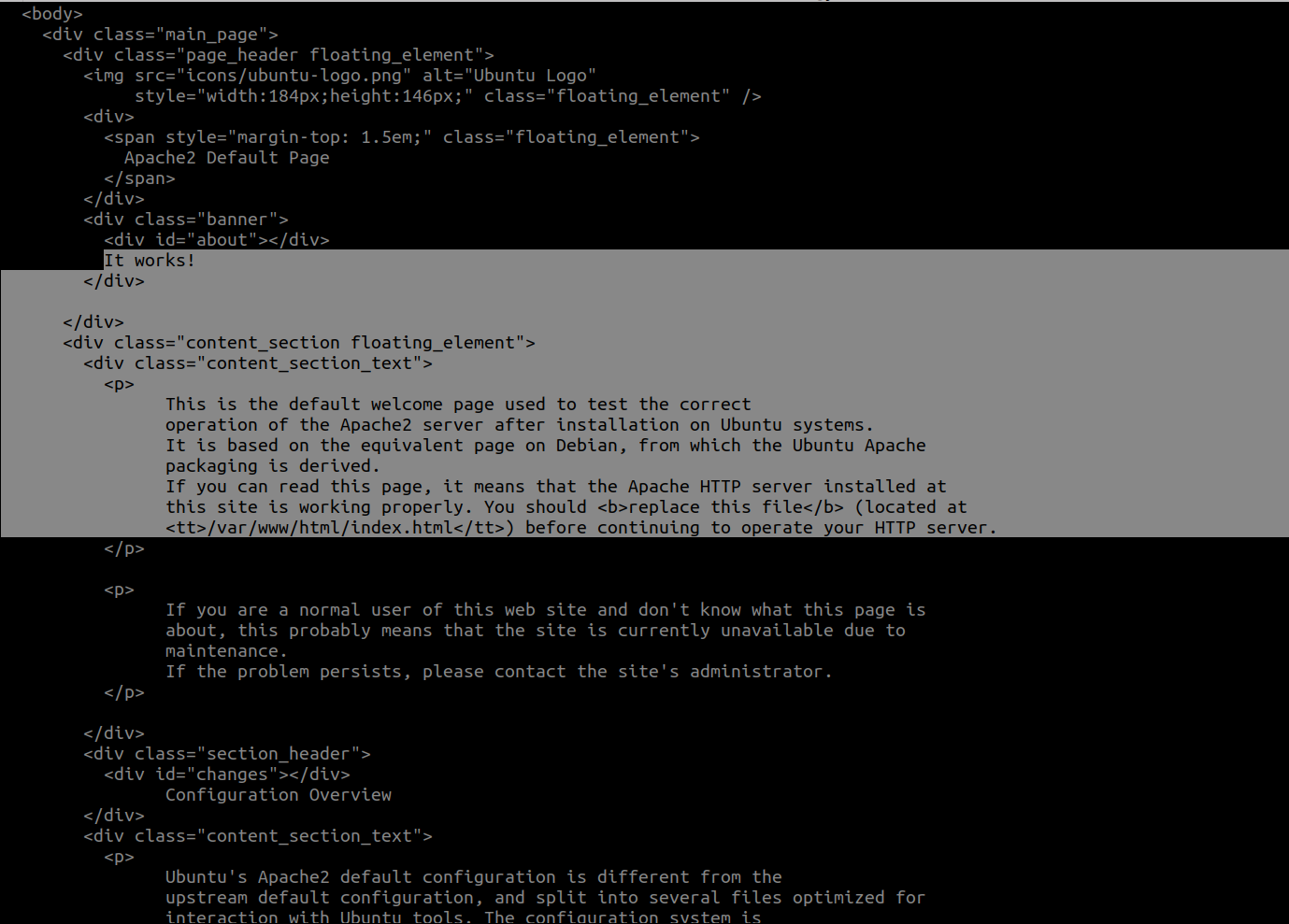
- Access the default web page hosted by your web server (open your browser and enter http://127.0.0.1 | If you do not have a graphical interface, perform a curl on http://127.0.0.1).
Return examples:
- Stop the apache2 service and refresh the web page or restart curl
- Make sure that the apache2 service starts automatically when your machine boots up. Check by restarting your machine.
- Make sure the service is active and display its logs with journalctl
- Display the unit file for the apache2 service
Exercise 2 (Let’s complicate things a little)
This exercise will consist of creating a custom service (bonjour.service) that executes a simple script.
- Create a Bash script
/usr/local/bin/dis_bonjour.shthat writes a sentence to a file: ```bash
#!/bin/bash while true; do echo “Hello, it is $(date)” | sudo tee -a /var/log/hello.log > /dev/null sleep 60 done
Make it executable:
```bash
sudo chmod +x /usr/local/bin/dis_bonjour.sh
- Create a unit file for this service:
sudo nano /etc/systemd/system/hello.serviceAdd the following content: ```ini [Unit] Description=Hello - Custom service [Service] ExecStart=/usr/local/bin/dis_bonjour.sh
User=root Environment=”PATH=/usr/bin:/bin” StandardOutput=journal [Install] WantedBy=multi-user.target
3. **Enable, start, and check your service**:
```bash
sudo systemctl daemon-reload
sudo systemctl enable hello

sudo systemctl start bonjour

   sudo systemctl status bonjour
- Check the contents of the log file:
cat /var/log/bonjour.log - Check the service logs:
journalctl -u bonjourExercise 3 (Deep Dive)
Run the script to start the challenge like a pro 😉.
-
Link to the challenge script: https://raw.githubusercontent.com/N0vachr0n0/NoFD/refs/heads/main/SVC_SYSTEMD_EXO.sh
Feedback
Please give us your feedback about this chapter.
-
👉🏾 Click here