

Chapter 6: Package Management
Foreword
We recommend that you do not use AI to do the exercises because you are in the learning phase.
Introduction
You will often need to install software that is not provided with your distribution or remove unwanted software so that it does not take up hard drive space. In this section, we will discuss managing software packages or applications on Linux.
Prerequisites
Same old story. 😉
Package managers in Linux
First of all, a package is an archive that contains a set of files and directories to be deployed on the operating system to enable the proper functioning of the software to be installed. A package may require other packages to function. These are called dependencies.
Linux repositories
A Linux repository is a place (often on the Internet) where software packages are stored, ready to be downloaded and installed. We can also think of repositories as well-organized supermarkets or warehouses where we find these packages. On Linux, there are several types of repositories:
- Official repositories: Those provided by the Linux distribution itself.
- Third-party repositories: Added manually by the user when installing software.
Linux repositories are defined in one or more files on your OS. On Debian/Ubuntu, they are listed in /etc/apt/sources.list and in the files in the /etc/apt/sources.list.d/ folder.
Examples of lines in sources.list:
Types: deb
URIs: http://archive.ubuntu.com/ubuntu
Suites: noble noble-updates noble-backports
Components: main universe restricted multiverse
Signed-By: /usr/share/keyrings/ubuntu-archive-keyring.gpg
deb http://archive.ubuntu.com/ubuntu/ focal main restricted universe multiverse
Package management tools in Linux
Packages are installed using a manager/tool. The table below lists some of the managers available.
| Manager | Distributions concerned | source.list file or equivalent | Example commands |
|——————|———————————————|————————————————–|—————————————————-|
| APT / APT-GET | Debian, Ubuntu, Linux Mint, Kali, etc. | /etc/apt/sources.list and /etc/apt/sources.list.d/ | apt install, apt update |
| DPKG | Debian-based | Not applicable (local package) | dpkg -i package.deb, dpkg -r package |
| DNF | Fedora, RHEL 8+, CentOS Stream | /etc/yum.repos.d/ | dnf install, dnf upgrade |
| YUM | CentOS 7, RHEL 7, Fedora <21 | /etc/yum.repos.d/ | yum install, yum update |
| ZYPPER | openSUSE, SUSE Linux Enterprise | /etc/zypp/repos.d/ | zypper install, zypper update |
| PACMAN | Arch Linux, Manjaro, EndeavourOS | /etc/pacman.conf + /etc/pacman.d/mirrorlist | pacman -S, pacman -Syu |
| SNAP | All distros supporting Snap | Managed via snap install or internal files | snap install, snap refresh |
| FLATPAK | All distros supporting Flatpak | /var/lib/flatpak/ or ~/.local/share/flatpak/ | flatpak install flathub, flatpak update |
| APPIMAGE | All distros | No repository file required | Download → make executable → launch |
Info:
⚠️ “dpkg” does not automatically manage dependencies. If you encounter an error, use “apt –fix-broken install”.
Exploring the APT (Advanced Package Tool) manager
APT is one of the most popular Linux package managers because it comes with Ubuntu and other Debian-based distributions. Here are some examples in action.
| Action | APT command | Description |
|————————————|—————————————————–|——————|
| Update the package list | sudo apt update | Downloads the updated package list from the repositories. |
| Install a package | sudo apt install package_name | Installs the specified package and its dependencies. |
| Remove a package | sudo apt remove package_name | Uninstalls the package but leaves the configuration files. |
| Remove a package + config | sudo apt purge package_name | Removes the package AND its configuration files. |
| Update packages | sudo apt upgrade | Updates all installed packages to their latest versions. |
| Upgrade the system | sudo apt full-upgrade | Same as upgrade, but removes or installs packages as necessary. |
| Search for a package | apt search package_name | Searches for a package containing the given keyword. |
| Get info about a package | apt show package_name | Displays details about a package (version, size, dependencies, etc.). |
| Clean up old downloads | sudo apt clean | Deletes old downloaded .deb files. |
| Remove unnecessary packages | sudo apt autoremove | Removes automatically installed packages that are no longer needed. |
| List available packages | apt list all | Displays all available packages (installed or not). |
| List installed packages | apt list --installed | Shows only currently installed packages. |
Sorry for those who are not on a Debian-based distribution 😝.
INFO:
The –help or -h option and the man command are your best friends for getting information on how to use a command.
Good to know
Software on Linux is mainly installed via a package manager, but it is also possible to install software manually via GitHub repositories or other sources and methods.
Training ⚔️
Research exercise
- Find out why there are official and unofficial repositories
- Find the differences between free and non-free repositories
- Find the differences between the Flatpak and Snap package managers
- Find the differences between the Snap and Apt package managers
Exercise 1
- Install the figlet application and display the text “it’s crazy” with figlet
- Install the cowsay application and display the text “subarashi” with cowsay
- Install the atop application and view your system metrics.
Test: Type
figlet -v,cowsay -h, andatop -Vto verify the installation.Exercise 2 (Deep dive)
It’s time to get down to business!!!
This challenge consists of searching for the flag.zip file and compressing it to obtain the flag (special character string). Before starting the challenge, you will need to set up the environment as follows: Info: Pay attention to your prompt.
# Installation of prerequisites: the docker app
sudo apt update
sudo apt install -y docker.io
sudo systemctl enable docker --now
sudo usermod -aG docker $USER # In order to use the docker command without sudo in your next sessions
# Initializing the environment
sudo docker ps # Displays the containers currently running
sudo docker run -dit --name ctf-sysadmin fs0ci3ty/adminsys_basic-ctf # Downloading and setting up the challenge container
sudo docker ps
sudo docker exec -it ctf-sysadmin bash # Allows you to enter the Docker container and launch the bash terminal to execute commands.
At this point, you should be in the Docker container and not in the terminal attached to your OS, as shown below.
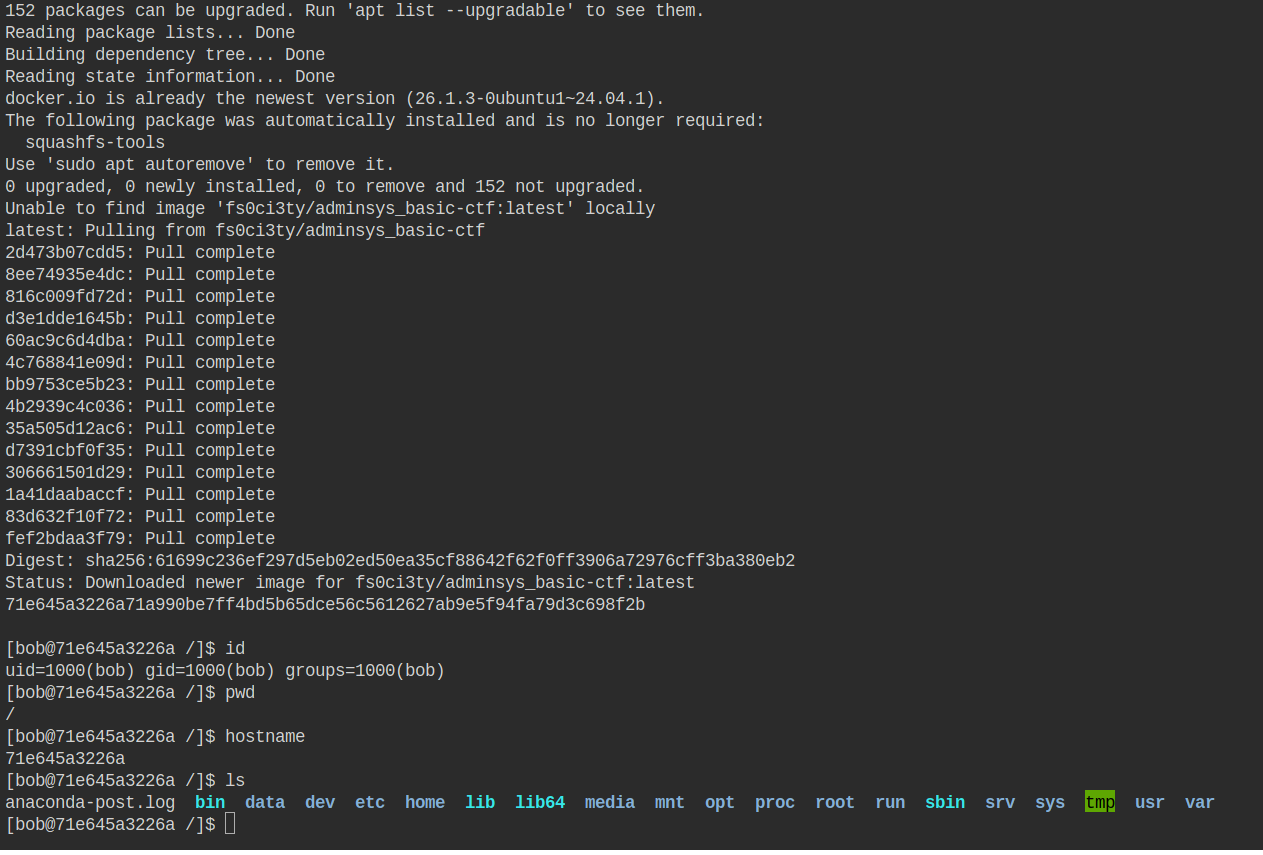
Now that the challenge environment is ready, you can begin the challenge. Good luck!
INFO
- Quick lesson: Docker is a tool that allows you to run applications in isolated environments called “containers.” It’s like a mini virtual machine, but much lighter and faster to start up. In our case, Docker allows us to set up a super-light version of a Linux distribution ready for use in a container.
- The challenge clues can be found here: https://github.com/N0vachr0n0/NoFD/blob/main/Hint_PKG_EXO_2.md
- The environment can be reset as follows:
exit # To exit the container and return to your initial prompt
sudo docker rm -f ctf-sysadmin # Delete the container
sudo docker run -dit --name ctf-sysadmin fs0ci3ty/adminsys_basic-ctf
sudo docker exec -it ctf-sysadmin bash
Want to learn more about Docker? Go here => https://openclassrooms.com/en/courses/7905646-optimize-your-deployment-with-docker-containers
I also invite you to search for “rootless docker” and “podman vs docker.” Final note ⚠️:
If you use Docker on your VPS or private server accessible on the internet, we invite you to pay attention to the ports listened to by Docker because it creates a rule that bypasses firewall rules. This is normal behavior in Docker. We therefore invite you to read these articles:
- https://docs.docker.com/engine/network/packet-filtering-firewalls/
- https://forums.docker.com/t/need-more-clarifications-for-firewall-prerequisites/142657
- https://medium.com/@akhshyganesh/docker-vs-your-firewall-the-silent-port-sneak-6e4bad366a5e
- https://rithwik.hashnode.dev/how-docker-can-be-sneaky-around-your-ufw-firewall
Feedback
Please give us your feedback about this chapter.
👉🏾 Click here