

Chapter 2: Basic Commands
Foreword
We recommend that you do not use AI to do the exercises, as you are still in the learning phase.
Introduction
Although there are a multitude of commands in Linux, a few are essential for getting the most out of this system. You will likely use them every day.
Prerequisites
- Have a virtual machine or a PC or a Linux environment (ideally Ubuntu)
- Be resilient 😜
Info:
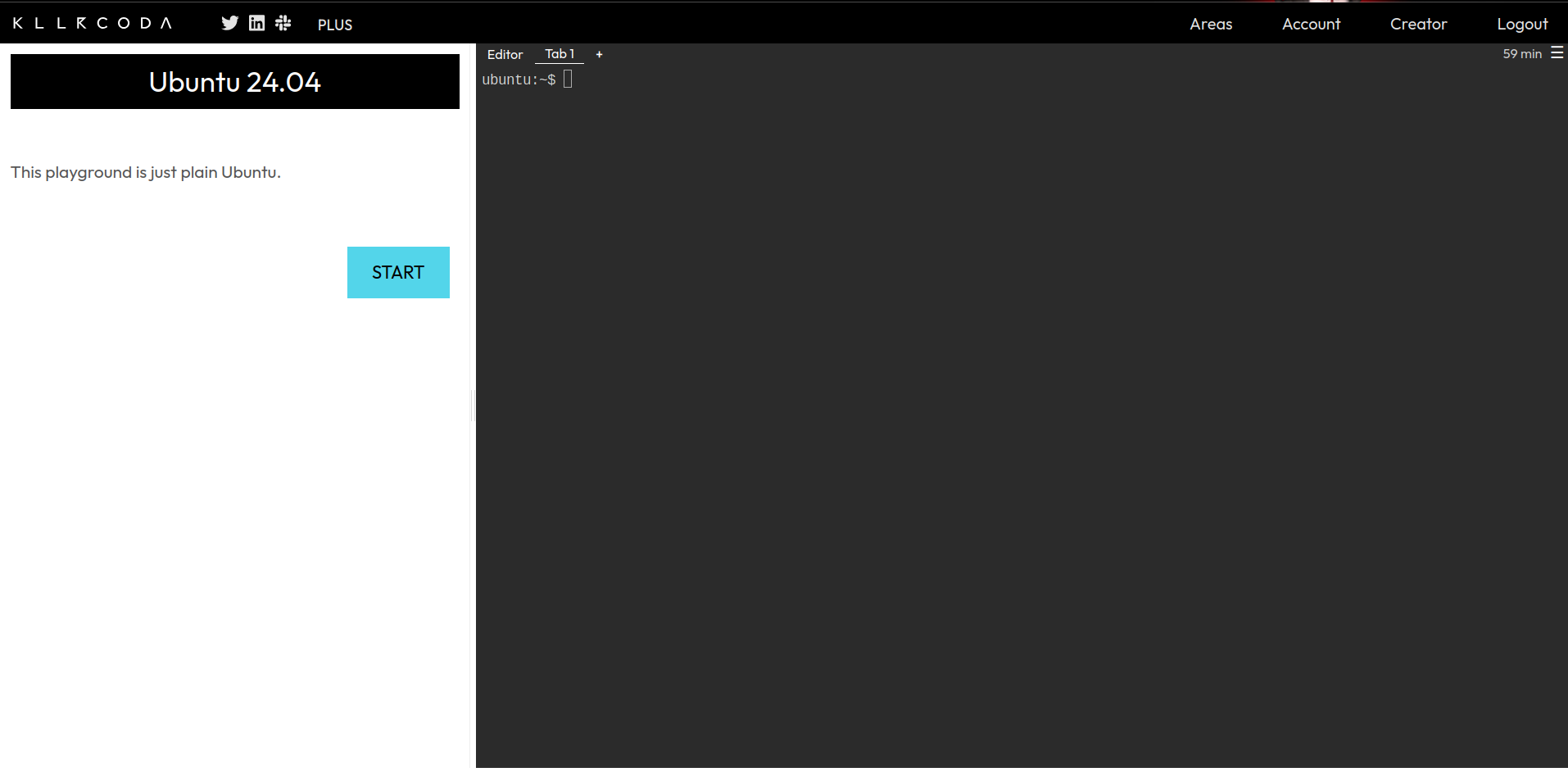
If you don’t have a Linux environment available, you can register at https://killercoda.com and go to https://killercoda.com/playgrounds/scenario/ubuntu to access a virtual machine running Ubuntu 24.04 (without a graphical interface, of course!) for 1 hour, renewable for free.
You will then see this view:
!
Bonus for the Killerkoda team 👨🏾💻👩🏾💻:
- Open your terminal
- Run:
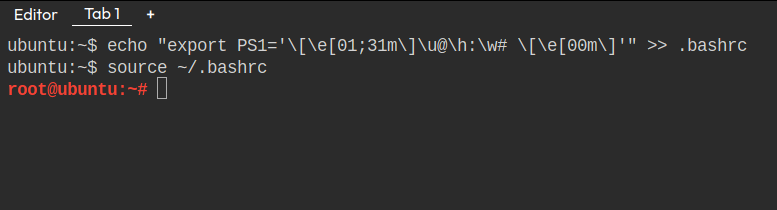
echo “export PS1=‘\[\e[01;31m\]\u@\h:\w# \[\e[00m\]’” >> .bashrc
source ~/.bashrc
You will now see this view:
Discovering the Linux terminal
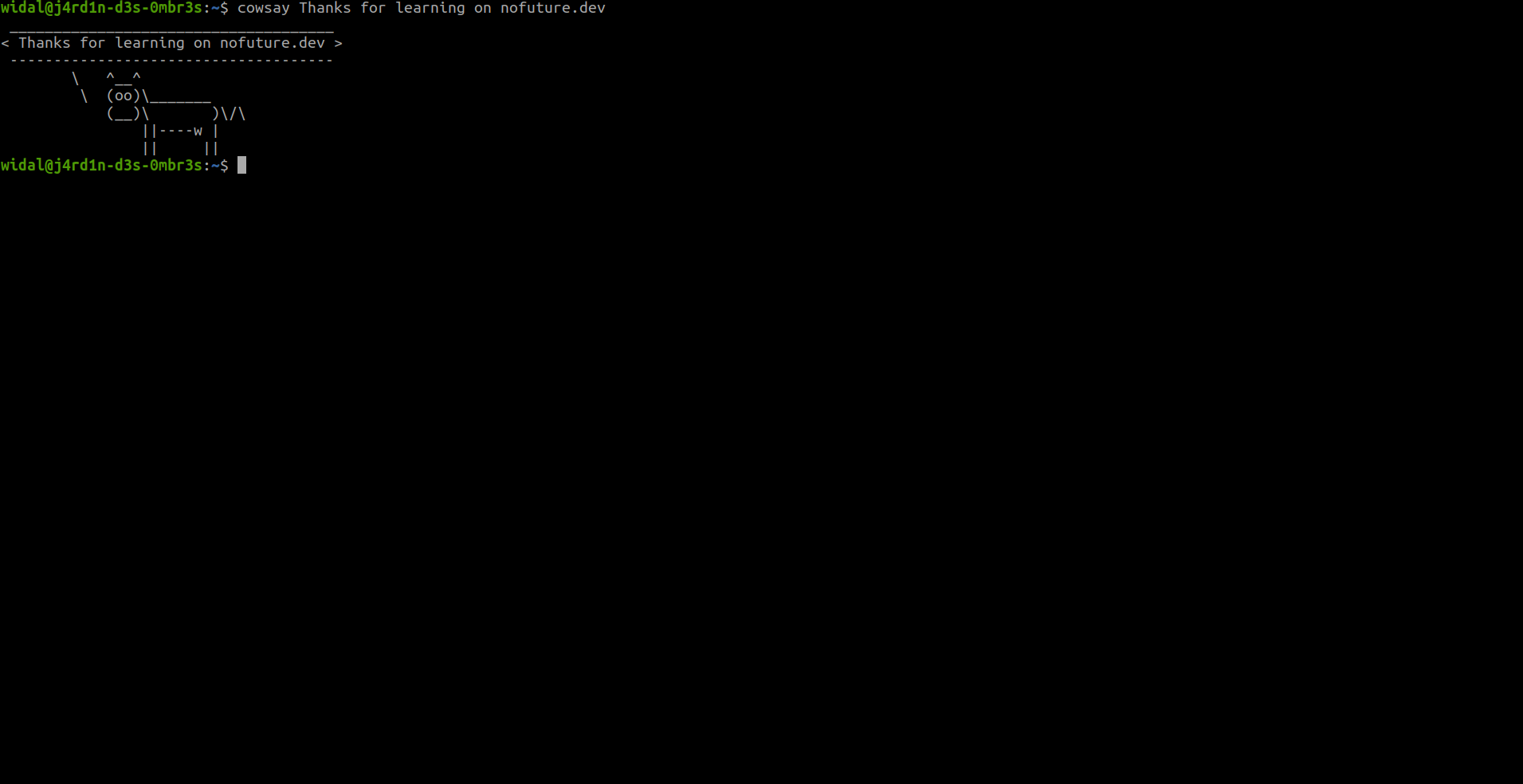
When we talk about the Linux terminal, we mainly mean the command prompt and command interpreter (shell). But also commands.
Example of a Linux terminal:
- The command prompt
- This is the line that indicates where you are and who you are in the system. It can vary depending on the distribution and configuration, but it often looks like this:
Example:user@machine:directory$ user: Your username.
- This is the line that indicates where you are and who you are in the system. It can vary depending on the distribution and configuration, but it often looks like this:
machine: The name of the host (computer).-
directory: The current folder (e.g.,~for the home folder). $: Symbol for a standard user (#for root).- The command interpreter (shell)
- The program that executes the commands you type. The most common is Bash (Bourne Again Shell), but there are others such as Zsh, Fish, or Tcsh.
- It translates your instructions into actions for the system.
- Commands
- The instructions you enter, such as
ls,cd,cat, or evencowsay, etc. They can be: - Internal: Integrated into the shell (e.g.,
cdto change directories). - External: Separate programs (e.g.,
lsto list files).
The Linux system tree
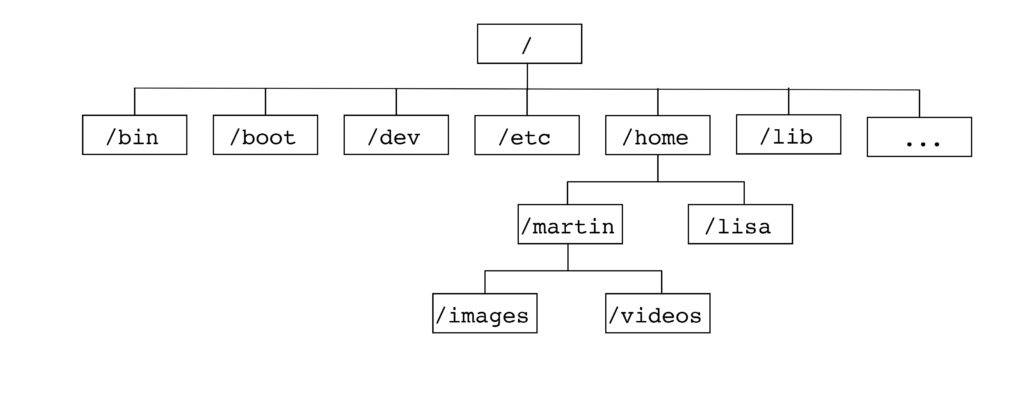
The Linux system tree is like a large, well-organized cabinet with lots of drawers and folders. This is how files and directories are structured in a Linux system. Everything starts from a single point called the root, denoted simply by a slash “ / ”. From there, everything is organized into branches, like a tree (hence the name “tree structure”). Here are the main directories and their roles:
- bin/: (binary) User programs
- sbin/: (super binary) Superuser programs
- lib/: (library) Libraries used by applications
- etc/: (et cetera) Application configuration
- tmp/: (temporary) Temporary directory accessible to all
- var/: (variable) Application data whose size varies (database, website, system logs, etc.)
- boot/: (boot) Linux kernel loaded at startup
- dev/: (devices) Access to peripherals
- proc/: (process) Virtual directory containing information about processes, the kernel, and its modules used by system commands
- opt/: (optional) Proprietary or non-standard software
- root/: Personal directory of the root user
- home/: Personal directory of users where their files are located
- mnt/: (mount points) Directory where devices are mounted
Below is a small illustration:
To test 👨🏾💻👩🏾💻:
- Open your terminal
- Run:
tree -d -L 1 /
Additional info:
The “/etc” directory mainly contains configurations related to your entire Linux system, but there is also a configuration directory called “.config”, which is usually located in each user’s home directory ( /home/username ). This is a hidden directory containing specific configurations for applications depending on each user.
Comparison between the Linux and Windows directory trees (BONUS)
Let’s compare the Linux directory tree with that of Windows, as if we were comparing two cabinets with different storage logics.
Linux: The unified directory tree (everything starts from /)
In Linux, everything starts at the root (/) and is organized into a single large structure. Each directory has a well-defined function:
- /home: Users’ personal space.
- /bin: Basic tools.
- /etc: Configuration files.
- etc.
It is a unified system: no matter where you install Linux or which disk you add, everything is seen as a branch of this single tree. For example, an external disk could be mounted under
/mntor/media.Windows: A structure based on drive letters
In Windows, there is no single root, but several separate “cabinets,” identified by letters (C:, D:, etc.). Each letter represents a disk or partition, and the organization is less standardized. Here are the main equivalents:
- C:\Users (or C:\Utilisateurs): Like
/homein Linux, the users’ personal space. - C:\Windows\System32: Similar to
/binor/usr/bin, where the files essential for running the system are located. - C:\Windows: Similar to
/etc, with configuration files (but everything is mixed in with the rest). - D: or other: If you connect an external drive or USB key, it will have its own letter and its own “tree,” independent of C:.
The big differences
- Single root vs. multiple letters:
- Linux: Everything is connected to
/. - Windows: Each drive is a separate island (C:, D:, etc.).
- Linux: Everything is connected to
- Clear roles vs. mixing:
- Linux keeps things separate (configs in
/etc, programs in/bin). - Windows often puts everything in
C:\WindowsorC:\Program Files, which can seem less structured.
- Linux keeps things separate (configs in
- Paths:
- Linux:
/home/user/doc.txt.
- Linux:
- Windows:
C:\Users\User\doc.txt, with backslashes (\).Concrete example
Let’s imagine you want to store a personal file:
- On Linux: It goes in
/home/your_name/my_docs. - On Windows: It goes in
C:\Users\YourName\My Documents. And if you plug in a USB drive: - On Linux: It appears under
/media/your_name/drive. - On Windows: It becomes
E:or another letter.In summary
Linux is like a large library with a single entry point and well-labeled shelves, while Windows is like several small independent libraries, each with its own filing system.
Basic commands
Info: If you are used to using your graphical interface to work, your goal will be to reproduce everything you know how to do in the graphical interface in the Linux terminal (create/move/copy/delete files/folders, create shortcuts, move around directories/folders, etc.).
# Navigation and file management commands
pwd: Displays the absolute path of the current directory (e.g.,/home/user).-
ls: Lists files and folders (replaced bydiron some distros, butlsis standard). - Useful options:
ls -l(details),ls -a(hidden files). ln: Creates symbolic or physical links between files (e.g.,ln -s file.txt symbolic_linkfor a symbolic link, orln file.txt physical_linkfor a physical link).cd: Changes directories (e.g.,cd /var/wwworcd ..to go up).mkdir: Creates a new folder (e.g.,mkdir new_folder).rmdir: Deletes an empty folder (e.g.,rmdir empty_folder).touch: Creates an empty file (e.g.,touch file.txt).cp: Copies files or folders (e.g.,cp file.txt copy.txt).mv: Moves or renames files (e.g.,mv file.txt /other/path).rm: Deletes files or folders (e.g.,rm file.txt,rm -r folderfor recursive) .tar: Archives or unarchives files (e.g.,tar -cvf archive.tar folderto create an archive, ortar -xvf archive.tarto extract).zip: Compresses files into ZIP format (e.g.,zip archive.zip file.txtto compress, orunzip archive.zipto decompress).Commands for displaying and manipulating content
cat: Displays the contents of a file (e.g.,cat file.txt).less: Displays a file page by page (e.g.,less file.txt, exit withq).more: Similar toless, but less flexible (e.g.,more file.txt).echo: Displays text or variables (e.g.,echo “Hello”).head: Displays the first lines of a file (e.g.,head -n 5 file.txt).tail: Displays the last lines (e.g.,tail -n 5 file.txt).nano: Opens a simple text editor in the terminal (e.g.,nano file.txt, save withCtrl+O, exit withCtrl+X).vi: Opens the Vi text editor (e.g.,vi file.txt, switch to insert mode withi, save and exit with:wq).vim: Improved version of Vi (e.g.,vim file.txt, same commands as Vi but with more features).which: Displays the full path of a command or program (e.g.,which pythonto see where the Python program is located).Search and filter commands
find: Searches for files or folders in a tree structure (e.g.,find /home -name “file.txt”to search for a file namedfile.txtin/home).grep: Searches for a pattern in files or output (e.g.,grep “word” file.txtto find ‘word’ infile.txt, orls | grep “doc”to filter the results ofls).locate: Agent 007. It allows you to perform an ultra-fast search for a file via an indexed database on your system (e.g.,locate file.txt). It is less accurate if the file you are looking for has just been created. If the file does not appear, you will need to update the database with the commandsudo updatedb.
System information commands
whoami: Displays the current user.uname: Provides information about the system (e.g.,uname -afor everything).df: Displays the available disk space (e.g.,df -hfor a readable format).du: Calculates the size of a folder (e.g.,du -sh folder).top: Shows current processes (like a task manager).nproc: Displays the number of processors (cores) available on the machine.Permission management commands
chmod: Changes the permissions of a file (e.g.,chmod +x script.shfor executable).chown: Changes the owner of a file (e.g.,chown user file.txt).ls -l: Checks permissions (e.g.,-rwxr-xr-x).Network commands
ping: Tests network connectivity (e.g.,ping google.com).curl: Retrieves data from a URL (e.g.,curl http://example.com) .wget: Downloads files from the web (e.g.,wget http://example.com/fichier).Utility commands
man: Displays the manual for a command (e.g.,man ls).history: Lists previous commands.clear: Clears the terminal screen.sudo: Executes a command as an administrator (e.g.,sudo apt update).exit: Closes the terminal or session.alias: Creates a shortcut for a command (e.g.,alias ll="ls -l"so thatllexecutesls -l).Redirections and pipes
>: Redirects output to a file (e.g.,echo “text” > file.txt).>>: Adds to a file without overwriting it (e.g.,echo “more” >> file.txt).|: Connects commands (e.g.,ls | grep “word”). Well, that’s quite a range of commands. It’s important to note that it takes practice to remember all these different commands. In addition, the –help option and the man command will be your best friends when it comes to learning how to use a command.
Try it out 👨🏾💻👩🏾💻:
- Open your terminal
- Run: ```bash cp –help
man find
# Training ⚔️
## Exercise 1
* Complete at least the first 10 challenges: https://cmdchallenge.com/

## Exercise 2
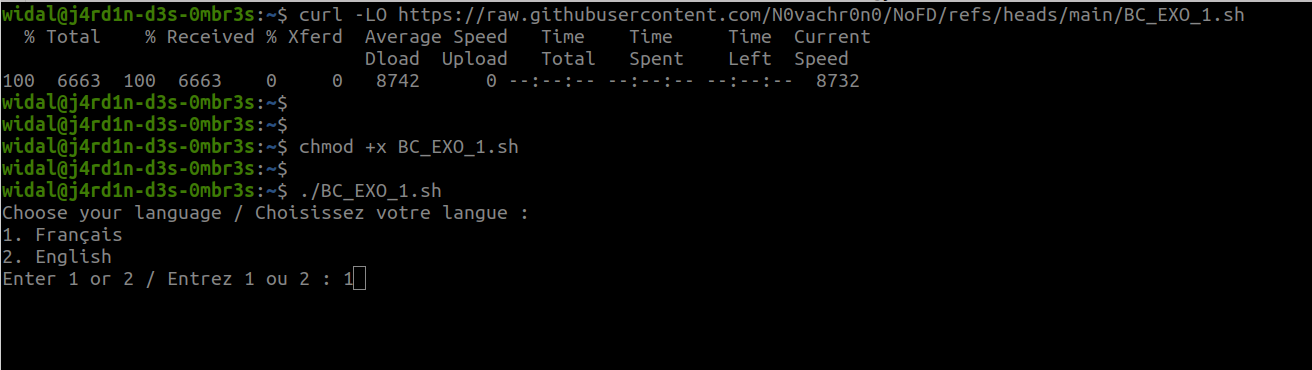
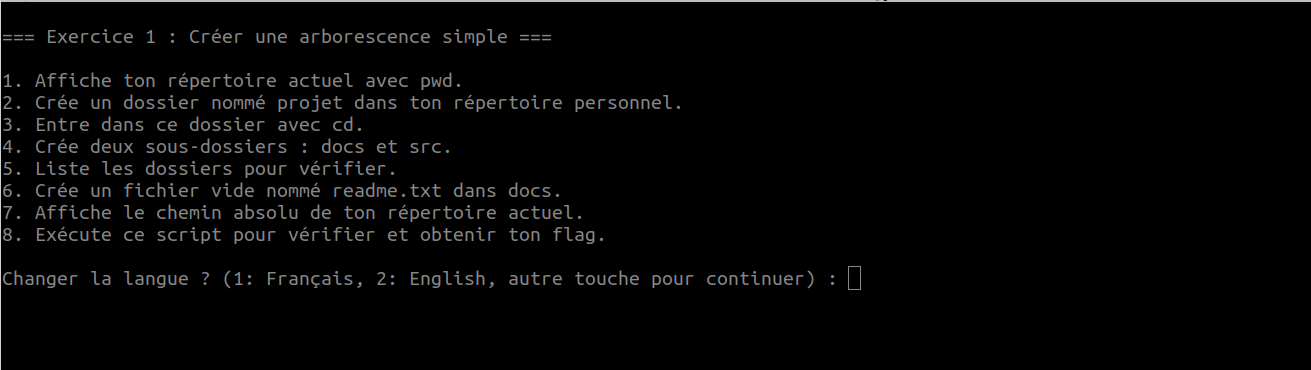
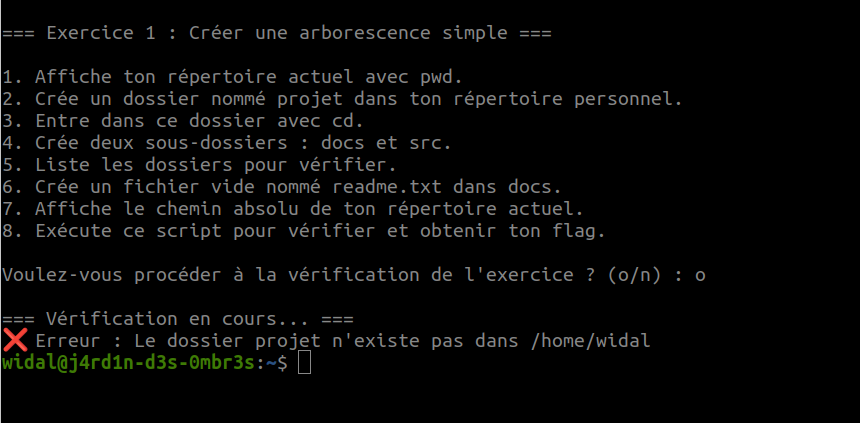
The exercises in this section will be in the form of challenges. There will be five challenges. Each challenge is accessible via a script that you will need to run to get started.
* Link to the challenge 1 script: https://raw.githubusercontent.com/N0vachr0n0/NoFD/refs/heads/main/BC_EXO_1.sh
* Link to the script for challenge 2: https://raw.githubusercontent.com/N0vachr0n0/NoFD/refs/heads/main/BC_EXO_2.sh
* Link to the script for challenge 3: https://raw.githubusercontent.com/N0vachr0n0/NoFD/refs/heads/main/BC_EXO_3.sh
* Link to the script for challenge 4: https://raw.githubusercontent.com/N0vachr0n0/NoFD/refs/heads/main/BC_EXO_4.sh
* Link to the script for challenge 5: https://raw.githubusercontent.com/N0vachr0n0/NoFD/refs/heads/main/BC_EXO_5.sh

Below is an example of execution:
```bash
# Download the challenge 1 script
curl -LO https://raw.githubusercontent.com/N0vachr0n0/NoFD/refs/heads/main/BC_EXO_1.sh
# Make it executable
chmod +x BC_EXO_1.sh
# Run it to start the challenge
./BC_EXO_1.sh
Exercise 3 (Deep dive)
- Complete this challengehttps://sadservers.com/scenario/saskatoon
Exercise 4 (Bonus)
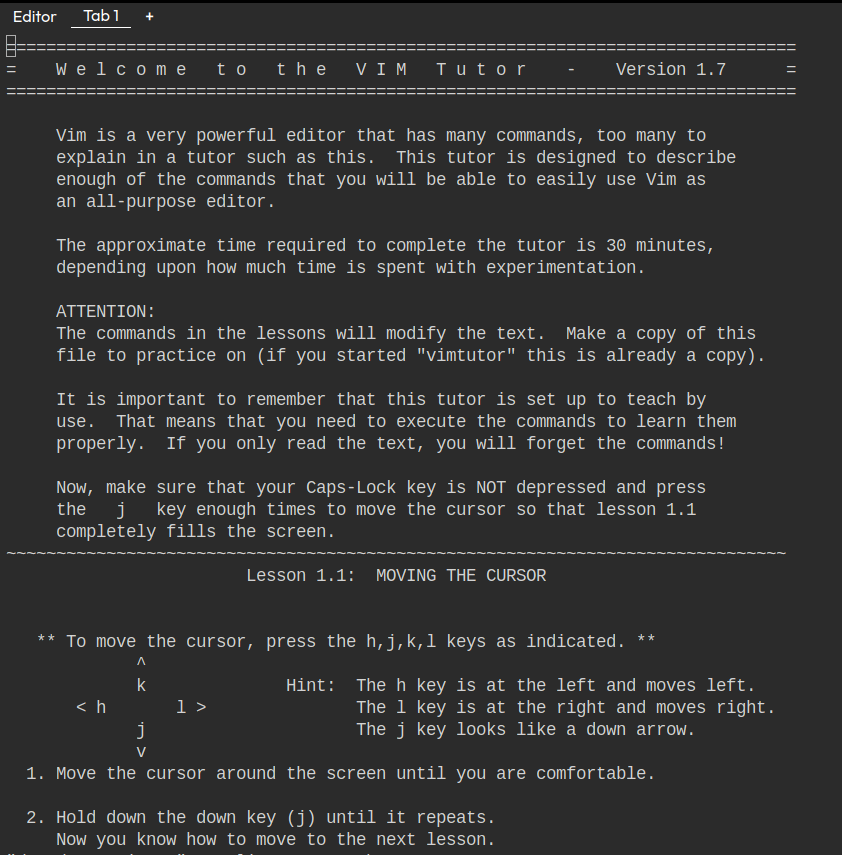
To learn how to master/familiarize yourself with the vim text editor, we recommend using vimtutor.
Open your terminal and type vimtutor. You will get a response similar to:
 —
—
—
—
Feedback
Please give us your feedback about this chapter.
👉🏾 Click here