

Chapter 3: Process Management
Foreword
We recommend that you do not use AI to do the exercises because you are in the learning phase.
Introduction
In a Linux system, process management is a fundamental aspect of system administration and application operation. A process is simply a program that is currently running. Linux, like all modern operating systems, uses processes to execute tasks and organize work.
Prerequisites (Repetition is educational XD)
- Have a virtual machine or a PC or a Linux environment (ideally Ubuntu)
- Be resilient 😜
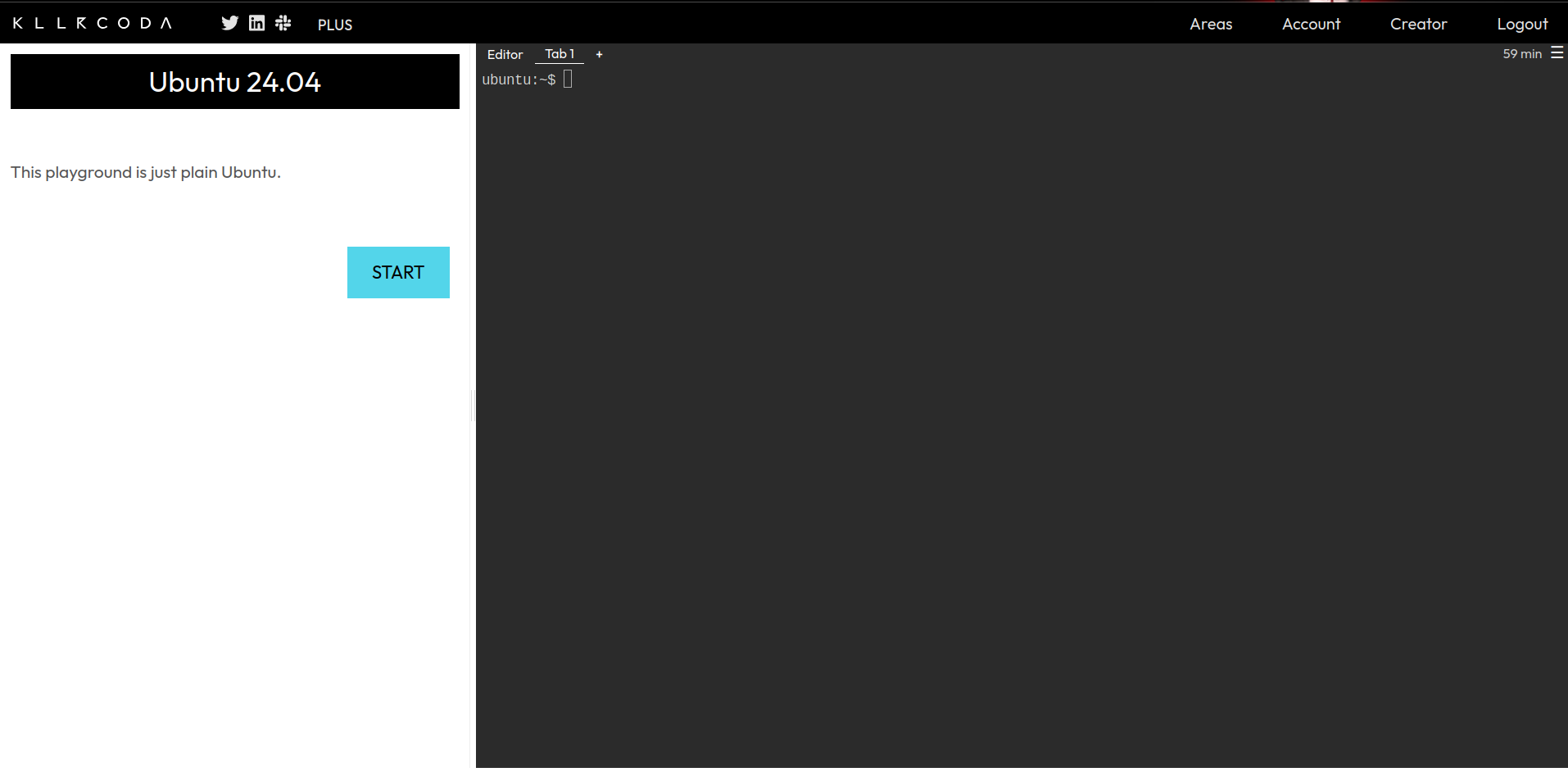
Info: If you don’t have a Linux environment available, you can register at https://killercoda.com and go to https://killercoda.com/playgrounds/scenario/ubuntu to get access to a virtual machine running Ubuntu 24.04 (without a graphical interface, of course!) for 1 hour, renewable for free.
You will then see this view:
General information
A process is an instance of a running program. It can be as simple as a command launched in the terminal or as complex as a background application. Each process has its own memory space, its own unique identifier (PID), and information about its execution status. If process 2 was launched by process 1, it is called a child process. The process that launched it is called the parent process.
There are different types of processes in Linux:
- Interactive processes: These are processes launched by a user directly via a terminal or graphical interface. For example, launching a text editor or web browser.
- Background processes (daemons): These are processes that run without direct interaction with the user, often used for system services, such as a web server (Apache, for example).
- Zombie processes: These are processes that have finished executing but whose information remains in the process table because their parent has not yet retrieved their exit status.
TLDR (Quick summary)
- A process is an instance of a running program.
- Each process has:
- a PID: Process IDentifier, a unique process identifier;
- a PPID: Parent Process IDentifier, a unique parent process identifier.
- Types of processes: interactive, background, and zombie
Let’s type a little
To test 👨🏾💻👩🏾💻:
- Open your terminal
- Run:
ps
For your information, ps stands for process status. It allows us to display the processes currently running. You will get a result similar to:
PID    TTY          TIME CMD
380123 pts/3    00:00:00 bash
427931 pts/3    00:00:00 ps
Below is an explanatory table.
| Column | Meaning | Example |
|———|—————|———|
| PID | Unique identifier assigned by Linux to each process. | bash: 380123ps: 427931 |
| TTY | Terminal to which the process is attached. pts/* are pseudo-terminals, often opened during an SSH connection or a graphical terminal. | pts/3 |
| TIME | CPU time used by the process since its launch. | 00:00:00 (minimum time for fast or inactive processes) |
| CMD | Command or program that launched the process. | bash (interactive shell)ps (process display command) |
This result raises two (2) questions:
-
Why does ps display itself?
- Why can’t we see all the processes on the system after typing ps?
- The ps command is itself a Linux process. When it is executed, it temporarily creates itself as a process, then analyzes the processes running at that precise moment. Thus, it naturally appears in its own results.
- By default, this command (ps) without any specific arguments only displays the processes associated with its current terminal. This explains why we only see the shell (bash) we are currently using, as well as the ps command itself.
Try it out 👨🏾💻👩🏾💻:
- Open your terminal
- Run:
ps
echo ‘foo’ > myfile.txt
tail -f myfile.txt & #To run the task in the background
jobs #To view background tasks
ps
Process management
Commands to display running processes:
- In real time:
top - At a given moment:
ps -e: all processes-
-f: detailed display Practical examples: - List all processes with details:
ps -ef - List processes in tree form:
ps -faux - Check if the apache process is running:
ps -ef | grep httpd -
Stop process
123cleanly (SIGTERM signal):kill 123 - Force immediate termination of process
123(SIGKILL signal):kill -9 123
Reminder: The man command and the –help option are your best friends.
Other commands
The pgrep and pkill commands
The pgrep command searches among the currently running processes for a process name and displays the PIDs corresponding to the selection criteria on the standard output. The pkill command will send the specified signal (default SIGTERM) to each process matching the specified criteria. Syntax:
pgrep processpkill [-signal] processExamples:- Retrieve the process number of sshd for the root user: ```bash pgrep -u root sshd
- Kill all tomcat processes:
pkill tomcat
Training ⚔️
Exercise 1
- Link to the challenge script: https://raw.githubusercontent.com/N0vachr0n0/NoFD/refs/heads/main/PRM_EXO_1.sh
Below is an example of execution:
# Download the challenge 1 script
curl -LO https://raw.githubusercontent.com/N0vachr0n0/NoFD/refs/heads/main/PRM_EXO_1.sh
# Make it executable
chmod +x PRM_EXO_1.sh
# Run it to start the challenge
./PRM_EXO_1.sh
Exercise 2
It’s here: https://sadservers.com/scenario/saint-john — —
Feedback
Please give us your feedback about this chapter.
👉🏾 Click here