

Chapter 4: Users and Groups
Foreword
We recommend that you do not use AI to do the exercises because you are in the learning phase.
Introduction
Linux is a true multi-user system! Multiple users can log in and perform tasks at the same time. It also has a single-user mode managed by the kernel, used only for maintenance purposes. Users generally have:
- a login and password
- a system ID (user ID or uid)
- a primary group and secondary groups
- a home directory, files, and data
- running processes
Prerequisites (Repetition is educational 😜)
- Have a virtual machine, PC, or Linux environment (ideally Ubuntu)
- Be resilient
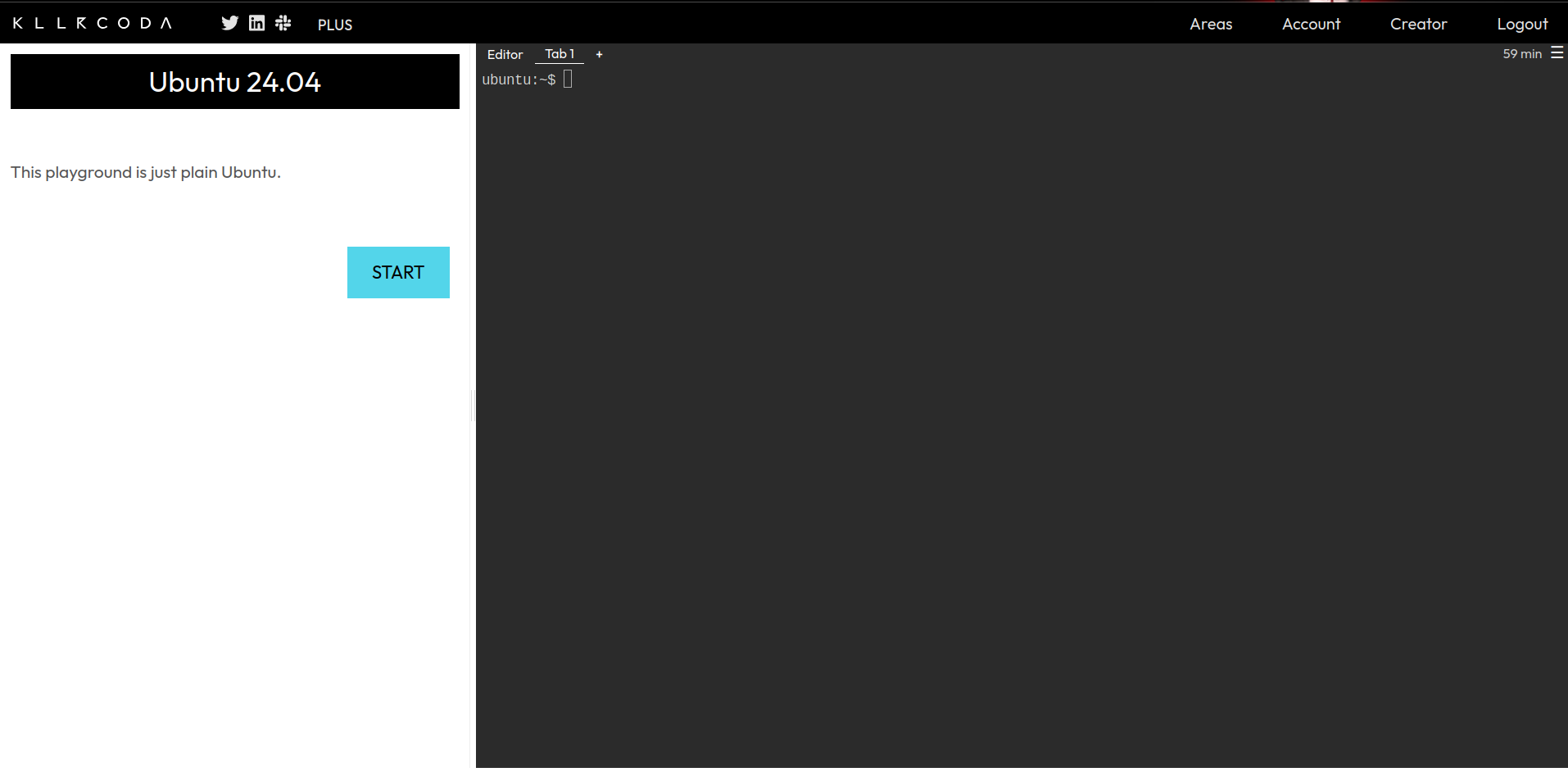
Info: If you don’t have a Linux environment available, you can register at https://killercoda.com and go to https://killercoda.com/playgrounds/scenario/ubuntu to access a virtual machine running Ubuntu 24.04 (without a graphical interface, of course!) for 1 hour, renewable for free.
You will then see this view:
User management
Intro
To test 👨🏾💻👩🏾💻:
- Open your terminal
- Run (line by line):
whoami
id
who
w
Below is an example of a similar result you will get:
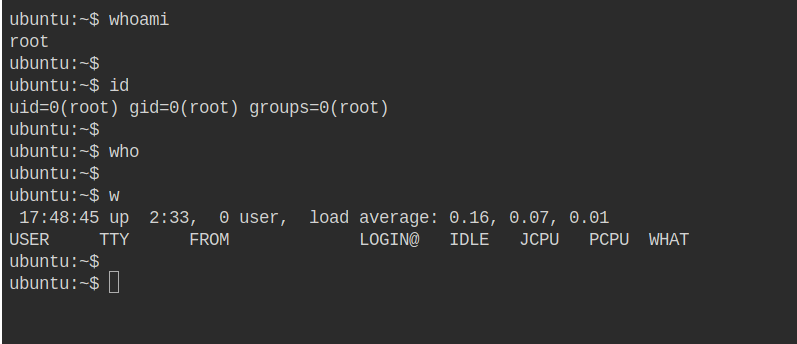
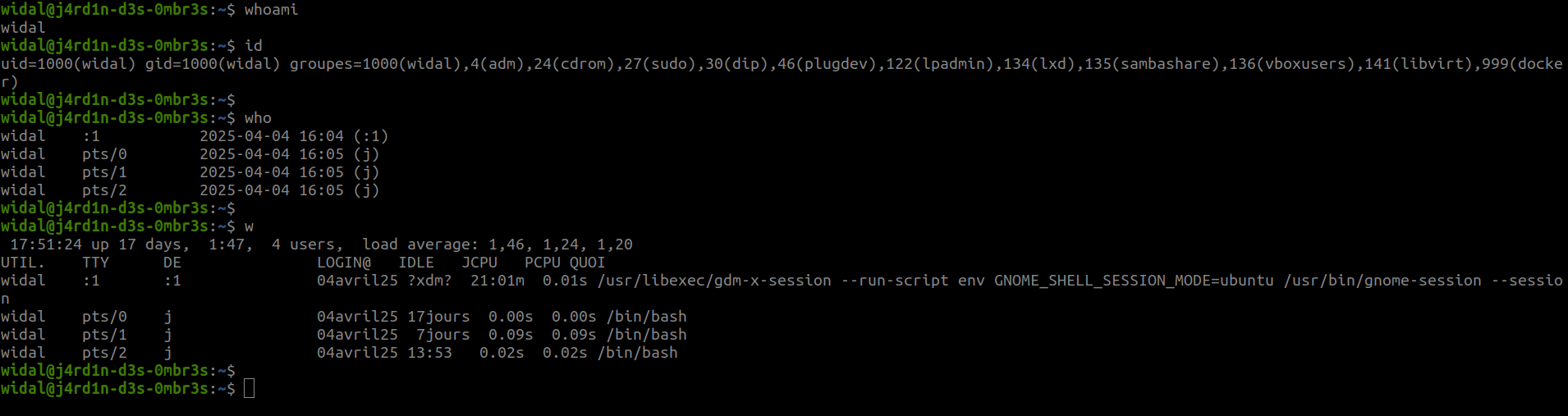
A quick explanation.
Command: whoami
widal@j4rd1n-d3s-0mbr3s:~$ whoami
widal
- Displays the name of the logged-in user.
-
Result here:
widalCommand:
idwidal@j4rd1n-d3s-0mbr3s:~$ id uid=1000(widal) gid=1000(widal) groups=1000(widal),4(adm),24(cdrom),27(sudo),30(dip),46(plugdev),122(lpadmin),134(lxd),135(sambashare),136(vboxusers),141 (libvirt),999(docker) - Displays the user ID and groups:
uid=1000→ User IDgid=1000→ Primary group ID-
groups=...→ Secondary groups (e.g.,sudo,docker,plugdev, etc.)Command:
whowidal@j4rd1n-d3s-0mbr3s:~$ who widal :1 2025-04-04 16:04 (:1) widal pts/0 2025-04-04 16:05 (j) widal pts/1 2025-04-04 16:05 (j) widal pts/2 2025-04-04 16:05 (j) - Shows who is connected to the system.
:1→ graphical session (interface)-
pts/0,pts/1,pts/2→ open terminals (e.g., via terminal or SSH)Command:
wwidal@j4rd1n-d3s-0mbr3s:~$ w 17:51:24 up 17 days, 1:47, 4 users, load average: 1.46, 1.24, 1.20 USER TTY DE LOGIN@ IDLE JCPU PCPU WHAT widal :1 :1 04Apr25 ?xdm? 21:01m 0.01s /usr/libexec/gdm-x-session ... widal pts/0 j 04Apr25 17days 0.00s 0.00s /bin/bash widal pts/1 j 04Apr25 7days 0.09s 0.09s /bin/bash widal pts/2 j 04Apr25 13:53 0.02s 0.02s /bin/bash - System summary:
- System online for 17 days
- 4 users connected (Each open terminal and graphical interface represents a connected user)
- Average load (1, 5, 15 min):
1.46,1.24,1.20 - Columns:
USER: UsernameTTY: Terminal usedLOGIN@: Connection time/dateIDLE: Idle time-
JCPU: Total CPU time used by the user PCPU: CPU time of the active processWHAT: Current process/command
What is the /etc/passwd file?
- The /etc/passwd file lists all users of the system and their associated information.
-
Common to all distributions
- It is a public file, generally unrestricted for reading (but restricted for writing)
- One line per declared user: login:password:uid:gid:comment:home directory:shell
- Example:
djo:x:15:15:Djo Dalton:/home/djo:/bin/bash - The root user always has uid 0!
- What does the x in the line mean?
djo:x:15:15:Djo Dalton:/home/djo:/bin/bash - It indicates that the password is located in /etc/shadow
- most likely encrypted
- most likely “salted”
- A user’s password is usually set by the passwd command To test 👨🏾💻👩🏾💻:
- Open your terminal
- Run (line by line):
cat /etc/passwd
🔁🃏 UNO Reverse!!!
- The /etc/shadow file contains user security information (separated by :)
- Line format in /etc/shadow: login:encryptedpassword:lastchange:minimumage:maximumage:warningtime:inactivitytime:expirationdate:reserved
- Example:
djo:$y$j9T$3J4GSvuGv7bM4Vn4BRaOm1$3nuzvVPg0VJoidAVUKsMJvf2Hn3Q6.TbC0H5MnqA782:15051:0:99999:7::: - Password hashed with MD5 and salted
- Password not changed for 15051 days (after 01/01/1970)
- No minimum age (0)
- Maximum age of 99999 days before expiration
- 7 days before expiration, the user will be notified
- ⚠️ It is not recommended to modify the /etc/passwd and /etc/shadow files directly in order to avoid the risk of typos, which would make authentication impossible To test 👨🏾💻👩🏾💻:
- Open your terminal
- Run (line by line):
cat /etc/shadowUser management commands
Points to note ⚠️
- Only the root user (the superuser/administrator) has the ability to use user and group management commands.
- A regular user must have admin rights. To do this, you will need to use the sudo command when using a user management command. When using the sudo command, you will be prompted to enter your password. Below is an example. ``` widal@j4rd1n-d3s-0mbr3s:~$ whoami widal widal@j4rd1n-d3s-0mbr3s:~$ useradd avrell useradd: Permission denied. useradd: unable to lock /etc/passwd; try again later. widal@j4rd1n-d3s-0mbr3s:~$ sudo useradd avrell [sudo] Password for widal: widal@j4rd1n-d3s-0mbr3s:~$ id avrell uid=1002(avrell) gid=1002(avrell) groups=1002(avrell) widal@j4rd1n-d3s-0mbr3s:~$
widal@j4rd1n-d3s-0mbr3s:~$ echo “user avrell is there” user avrell is there widal@j4rd1n-d3s-0mbr3s:~$
### 1. `useradd` – Add a new user
```bash
sudo useradd username
- Creates a new user.
- ⚠️ By default, does not create the home directory (
/home/username) without options.Example:
sudo useradd -m alice - Creates the user
alice -
The folder
/home/aliceis created with the-moption.2.
usermod– Modify an existing usersudo usermod [options] username - Used to change a user’s information: group, directory, shell, etc.
Examples:
sudo usermod -aG sudo aliceAdds
aliceto thesudogroup.
sudo usermod -d /new/path alice
Changes alice’s home directory.
3. passwd – Change a user’s password
sudo passwd username
- Allows you to set or change a user’s password.
Example:
sudo passwd alicePrompts you to enter a new password for
alice.
4. userdel – Delete a user
sudo userdel username
- Deletes the user without deleting their home folder.
Example:
sudo userdel aliceAlso delete their folder:
sudo userdel -r alice
adduser vs useradd
| Command | Description |
|---|---|
useradd |
Low-level command: simple, but requires more options. |
adduser |
Interactive script: step-by-step guide to creating a user (password, info, home folder, shell, etc.). |
Example:
sudo adduser bob
This launches a wizard to create a complete user.
⚠️ ADDITIONAL INFO:
There may be a downside (usually when using useradd) and your user may end up without a home directory. You can fix this with the mkhomedir_helper command. (e.g., mkhomedir_helper myuserbob).
TLDR (Quick summary)
| Command | Role |
|————–|———————————–|
| useradd | Create a user (simple) |
| adduser | Create a user (assisted) |
| usermod | Modify an existing user |
| passwd | Change the password |
| userdel | Delete a user |
| mkhomedir_helper | Create a user’s home directory |
Commands to change users
-
su: Change users or open a root session (e.g.,
su userto switch to another user, orsuto become root). - Useful options:
su - user(loads the target user’s environment, as if it were a new login). -
sudo: Executes a command as another user, usually root (e.g.,
sudo commandto executecommandwith root privileges). - Useful options:
sudo -u user command(executes the command as a specific user). - whoami: Displays the current user (e.g.,
whoamireturns the name of the active user, useful for checking after a change).
Exercise ⚔️
- Link to the challenge script: https://raw.githubusercontent.com/N0vachr0n0/NoFD/refs/heads/main/USER_EXO_1.sh
Below is an example of execution:
# Download the challenge script 1
curl -LO https://raw.githubusercontent.com/N0vachr0n0/NoFD/refs/heads/main/USER_EXO_1.sh
# Make it executable
chmod +x USER_EXO_1.sh
# Run it to start the challenge
./USER_EXO_1.sh
Group Management
Intro
-
A group is a set of users who have things in common
- same permissions on certain files
- same applications used
- user classification
- etc.
- Each user has a base (primary) group, which is assigned to them when they are created. This allows them to assign this group to the files they create. This base group often has the same name as the user.
- A group generally has:
-
a system ID (group ID)
- a group name
- a group password
- a list of users who are part of the group
To test 👨🏾💻👩🏾💻:
- Open your terminal
- Run (line by line): ```bash
groups #To see the group(s) you belong to id #To see your primary group and secondary groups
* The **/etc/group** file lists all the groups in the system and their associated information
* Like **/etc/passwd**, it is common to all distributions

* It is also a public file that anyone can read
* **/etc/group** nomenclature:
groupname:grouppassword:gid:userlist
* Example:
```
admins:x:10:djo,jack,william,avrell
```
* As with users, the root group always has the gid 0!
**To test 👨🏾💻👩🏾💻:**
- Open your terminal
- Run:
```bash
cat /etc/group
The x that you will see here again represents the group password. It is located in /etc/gshadow, and as for users in /etc/shadow:
- Like /etc/shadow, /etc/gshadow should not be freely accessible (Info: meddling with the root group is dangerous!)
- Line format in /etc/gshadow:
group_name:encrypted_password:group_administrators:member:sgroup- Example:
daemon:$1$bmONNXPt$wRx7Xkxag20WhcT/kBc3p0::root,bin,daemon
- Example:
- Daemon group * Password hashed with MD5 and salted
- root, bin, and daemon can take this base group without being asked for a password
- It is not recommended to modify the /etc/group files or the /etc/gshadow file directly
The sudo or wheel group
- In the Linux universe, the sudo and wheel groups are groups that allow a simple user to use administrator rights. Let’s say the rights of the root user. sudo and wheel are privileged groups. They are also called sudoers groups.
- sudo is not only a group, but also a package/command that allows a regular user to run a command/application as an administrator (root). Take a look at “Run As Administrator” on Windows.
Group management commands
⚠️ Don’t forget the important points ⚠️
- groupadd: Creates a new group (e.g.,
groupadd group_nameto add a group namedgroup_name). - groupdel: Deletes a group (e.g.,
groupdel group_nameto delete the groupgroup_name). - groupmod: Modifies the attributes of a group (e.g.,
groupmod -n new_name old_nameto rename a group). - usermod: Changes a user’s group membership.
- Useful options:
usermod -g primary_group user(changes the primary group),usermod -aG secondary_group user(adds the user to a secondary group without removing the others). - gpasswd: Manages passwords and members of a group (e.g.,
gpasswd -a user groupto add a user, orgpasswd -d user groupto remove them). - getent: Displays information about a group (e.g.,
getent group group_nameto see group details, such as members). - groups: Lists the groups to which a user belongs (e.g.,
groups userto display the groups of the specified user, orgroupsfor the current user).
Managing the /etc/sudoers file
The /etc/sudoers file is a configuration file used on Linux/Unix systems to define user and group permissions for using the sudo command. It determines who can execute commands as the administrator (root) or another user, and which specific commands they can execute.
This file is crucial for security, as misconfiguration can either block legitimate access or grant too many privileges.
- Location:
/etc/sudoers(main file). - Format: Contains rules in the form
user host = (target_user) commands. - Example line:
user ALL=(ALL) ALLmeans thatusercan execute all commands on all hosts as any user. Thesudoersfile should never be edited directly with a conventional editor (such asnanoorvim), as a syntax error can block access tosudo. The recommended method is to use the visudo command, which checks the syntax before saving.sudo visudoBelow are some example lines. | Line | Meaning | |—————————————-|—————| |
jean ALL=(ALL) /usr/bin/apt, /usr/bin/systemctl| The userjeanis authorized to execute only the commands/usr/bin/aptand/usr/bin/systemctlas root or any other user, from any host. | |jean ALL=(ALL) NOPASSWD: ALL| The userjeancan execute all commands as any user without having to enter their password. | |jean ALL=(ALL) ALL| The userjeancan execute all commands as any user, but will need to enter their password. | |%admins ALL=(ALL) ALL| All members of theadminsgroup can execute all commands as any user, but must enter their password. (Note the %) |
To finish off, I invite you to do some research on:
sudo -l
Exercise ⚔️
Run the script to start the challenge like a pro 😉.
-
Link to the challenge script: https://raw.githubusercontent.com/N0vachr0n0/NoFD/refs/heads/main/USER_EXO_1.sh
Feedback
Please give us your feedback about this chapter.
👉🏾 Click here