

Chapter 5: File Permissions
Foreword
We recommend that you do not use AI to do the exercises because you are in the learning phase.
Introduction
In this section, we will discuss file management in Linux. More specifically, we will talk about file permissions and access management.
Prerequisites
Same old story. 😉
File Management
File Permissions
General
In Linux, file permissions are an essential barrier against unauthorized access.
- File permissions limit three actions:
- reading the file (characterized by the letter r)
-
writing or modifying the file (w)
- executing (binary, shell script, etc.) (x)
- Each of these three actions can be assigned to three types of users:
- the user who owns the file (indicated by the letter u)
-
any user in the file’s group (g)
- others (neither the file owner nor the file group) (o)
These permissions can be viewed using the
ls -lcommand, which displays them in the following symbolic form:-rw-rw-r-- 1 widal widal 244 April 23 01:48 pubspec.yamlLet’s break down each part of this line:
-rw-rw-r--: These are the file permissions.
- The first character (
-) indicates that it is a regular file (rather than a directory or symbolic link, for example). Below are all file types with their corresponding characters.-: Regular filed: Directoryc: Character deviceb: Block device
l: Symbolic link
p: Named pipe (IPC)
s: Local socket (IPC)
-
The first three characters (
rw-) indicate the permissions for the owner of the file (here, “widal”). The owner can read and write the file, but cannot execute it. - The next three characters (
rw-) indicate the permissions for the file’s group. The group “widal” can also read and write the file, but cannot execute it. - The last three characters (
r--) indicate the permissions for other users (those who are neither the owner nor members of the group). These users can only read the file, but cannot write to or execute it.1: This indicates the number of physical links (i.e., the number of file names pointing to this file) in the system. Generally, for a simple file, this is 1 (one).widal: The name of the owner of the file, in this case “widal.”widal: The name of the group associated with the file. Here too, the group is “widal.”244: The size of the file in bytes. This file is 244 bytes.April 23, 01:48: The date and time of the last modification of the file. Here, the file was modified on April 23 at 01:48.pubspec.yaml: This is the name of the file.Summary:
The
pubspec.yamlfile belongs to the user “widal” and the group “widal.” It is readable and writable by these two entities, but only readable by others. It is 244 bytes in size and was last modified on April 23 at 01:48.Changing file permissions
In Linux, file and directory permissions define who can read, write, or execute a file. You can change these permissions with the
chmodcommand. Permissions can be changed in two main ways: using numbers or symbols.1. Using Numbers for
chmodEach type of permission (read, write, execute) is represented by a number:
- Read (
r) = 4 - Write (
w) = 2 - Execute (
x) = 1 Permissions are assigned by a three-digit number representing the permissions of the owner, group, and other users, respectively. - The first digit is for the owner.
- The second digit is for the group.
- The third digit is for other users. Examples:
chmod 755 file.txt: The owner has all rights (7=rwx; let’s break it down:7=r(4) + w(2) + x(1)), the group has read and execute rights (5=r-x), and others also have read and execute rights (5=r-x).chmod 644 file.txt: The owner has read and write permissions (6=rw-), and others have read permissions only (4=r--).2. Using Symbols for
chmodPermissions can also be specified using symbols:
+: Add a permission.-: Remove a permission.=: Explicitly set permissions. Examples:chmod u+x file.txt: Adds execute permission for the owner (u= user).chmod g-w file.txt: Removes write permission for the group (g= group).chmod o=r file.txt: Sets permissions for other users to “read only” (o= others).3. Using
umask(ℹ️ Good to know!)The
umaskcommand determines the default permissions for files and directories when you create them. Theumaskis a kind of “mask” that removes certain permissions from created files. By default, when a file is created, it has broad permissions (such as777for a directory or666for a file), and theumaskwill adjust these permissions according to the specified values. Theumaskcommand can be used to display or change the default permissions mask.- For example, if
umaskis set to022, this means that new files will have default permissions of644(i.e., other users cannot write to the file). - If
umaskis set to0777, all files will have very restrictive permissions. Example: umask 0022: For a file, the permissions will be644(owner:rw-, group and others:r--).umask 0777: For a file, the permissions will be000, which prevents any access to the file.4.
cp -pThe
cpcommand is used to copy files or directories. The-poption ofcpallows you to preserve the attributes of the source file when copying, such as:- Permissions.
- Owner.
- Modification date.
For example:
cp -p source_file.txt copy_file.txtThis creates a copy of the file while maintaining the same permissions and other metadata as the original file. —
Table of permissions and
chmodvalues| Permission | Numeric value | Description | Associated symbols | |————|——————|——————-|——————-| | Read (
r) | 4 | Read the file |r| | Write (w) | 2 | Modify the file|w| | Execute (x) | 1 | Execute the file |x| | None | 0 | No permission | | | Numeric value | Owner (u) | Group (g) | Others (o) | Command example | |—————- –|——————|————|————|———————| | 7 (rwx) | read, write, execute | read, write, execute | read, write, execute |chmod 777 file.txt| | 6 (rw-) | read, write | read, write | read |chmod 644 file.txt| | 5 (r-x) | read, execute | read, execute | read |chmod 755 file.txt| | 4 (r–) | read | read | read |chmod 444 file.txt| | 0 (—) | No rights | No rights | No rights|chmod 000 file.txt| —Practical example
Let’s imagine you have a file
script.shwith the following permissions:-rw-r--r-- 1 user group 1000 Apr 23 01:48 script.shIf you want to give execute permissions to all users, you can do:
chmod +x script.shThis will change the permissions to give execute:
-rwxr-xr-x 1 user group 1000 Apr 23 01:48 script.shYou can also use
cp -pto copy a file while preserving its permissions and owner:cp -p script.sh /path/to/new_script.shThis will keep the same metadata and permissions in the copy.
Managing the owner and group of a file
- Each file has a single owner and a single group to which it belongs
- Generally, the initial owner of the file is the user associated with the process that created the file
- The initial group of the file is the base group of the user associated with the
process that created the file
Below is a table showing how file owner and group management works.
Here is the table in Markdown format:
| **Command**                               | **Description**                                      |
|------------------------------------------ --|------------------------------------------------------|
| `chown alice file.txt`                  | Changes the owner of the file to `alice`.         |
| `chown alice:dev file.txt`              | Changes the owner to `alice` and the group to `dev`. |
| `chown -R alice:dev /path/to/folder`  | Recursively changes the owner and group in a directory. |
| `chgrp dev file.txt`                    | Changes the group of the file to `dev`.                 |
| `chgrp -R dev /path/to/folder`        | Recursively changes the group in a directory.   |
| `ls -l file.txt`                        | Displays the permissions, owner, and group of the file. |
The Sticky Bit (ℹ️ Good to know!)
The sticky bit is a special permission that can be set on a directory. When enabled, this bit changes the behavior of files placed in that directory. Essentially, it allows you to restrict file deletion to the file owner. In other words, only the file owner or the administrator (root) can delete or rename a file in a directory marked with the sticky bit, even if other users have write permissions on the directory.
Usefulness of the Sticky Bit
The sticky bit is often used in shared directories, such as /tmp, where many users can create and modify files, but where it is essential that users cannot delete or modify other users’ files.
Typical use case:
/tmpdirectory: This is a directory used by the system and users to store temporary files. It is common to set the sticky bit on this directory to prevent users from deleting files created by other users in this directory.How to set and check the sticky bit?
1. Setting the sticky bit
To set the sticky bit, use the
chmodcommand with+t. This is usually done on directories. For example:chmod +t /tmpThis command adds the sticky bit to the
/tmpdirectory. If you want to verify that the sticky bit is enabled, you can use thels -lcommand to display the permissions for the directory:ls -ld /tmpThe output might look like this:
drwxrwxrwt 10 root root 4096 Apr 23 10:00 /tmpHere, the
tin therwxrwxrwtpermissions (instead ofxat the end) indicates that the sticky bit is enabled.2. Removing the Sticky Bit
If you want to remove the sticky bit from a directory, you can use the following command:
chmod -t /tmpThis removes the sticky bit, and users with write permissions on that directory can then delete or modify other users’ files.
Sticky Bit Behavior
-
With sticky bit: If the sticky bit is enabled on a directory, only the file owner, directory owner, or root user can delete or rename files. Other users with write permissions on the directory cannot affect other users’ files.
- Without sticky bit: If the sticky bit is not enabled, all users with write permissions on the directory can delete or rename other users’ files.
SETUID and SETGID
SETUID (Set User ID) and SETGID (Set Group ID) are special bits that can be set on executable files in Linux. When enabled, these bits change the way the system handles file execution. Their main purpose is to give temporary permissions to run a program, allowing a user to execute a file with the permissions of another user (usually a privileged user, such as root).
SETUID (Set User ID)
- Purpose: Allows a user to execute a file with the permissions of the owner of the file, not the user who launches the execution.
- Use case: This is often used for programs that require elevated privileges to perform a specific task, such as
passwd(change password), which must be executed with root privileges, even if the user executing it is not root.Example:
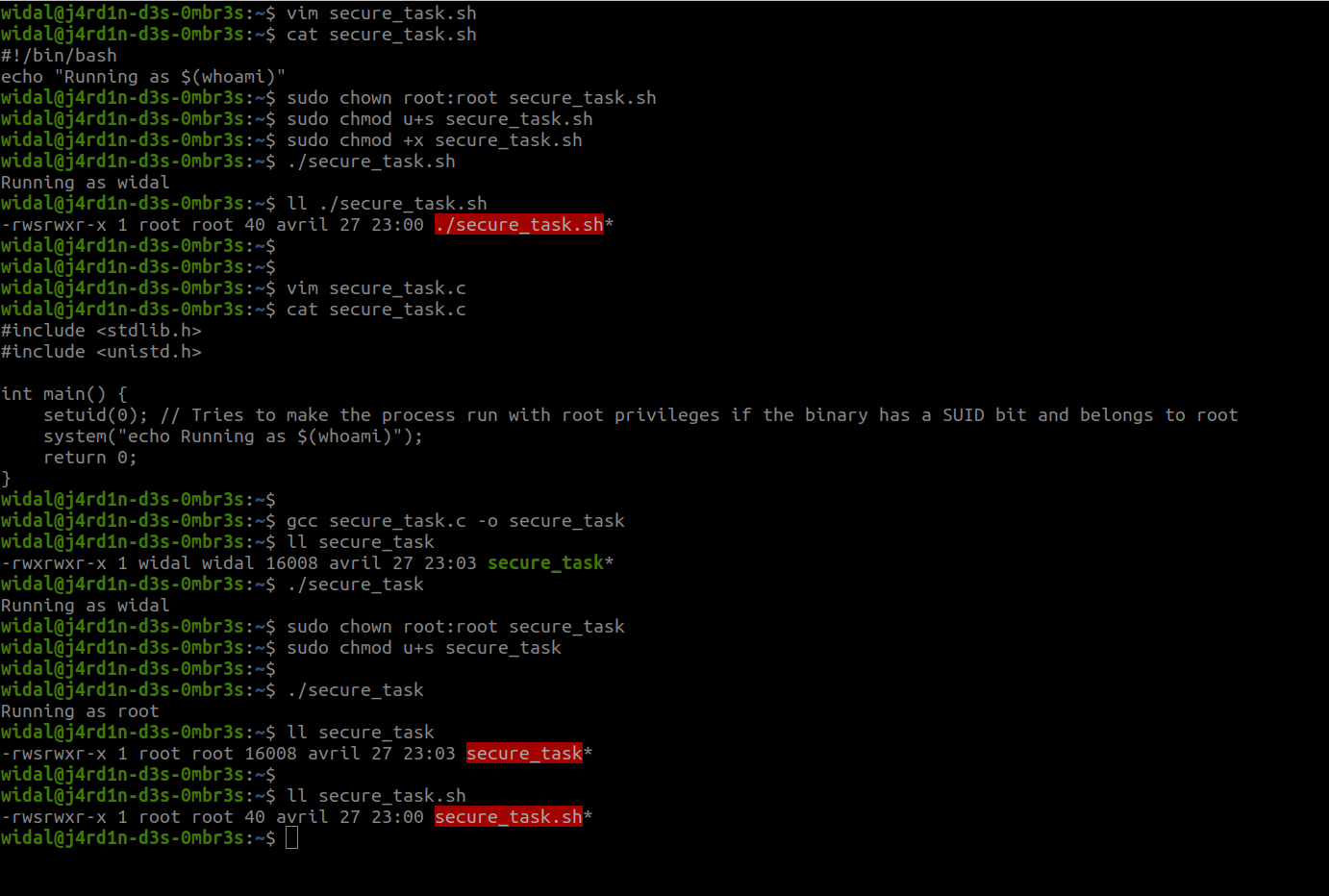
chmod u+s /path/to/fileThis adds the SETUID bit to an executable file. Important point: Modern Linux systems do not allow SETUID on shell scripts (such as .sh) for security reasons. The script will therefore run with the privileges of the current user, not those of the owner (root), even if the SETUID bit is active.
To test 👨🏾💻👩🏾💻:
- Open your terminal
- Run: ```bash
$ ls -l /usr/bin/passwd ## You will see the ‘s’ representing the SETUID bit at the user level. This binary file belongs to root, but anyone can execute it as root. $ passwd ## This allows you to change your password without using ‘sudo’, thanks to the SETUID bit.
### SETGID (Set Group ID)
- **Purpose**: Allows a user to execute a file with the **permissions of the group** of the file, rather than the permissions of the group of the user who launches the execution.
- **Use case**: Very useful for shared programs or directories where it is important to maintain specific group permissions.
#### Example:
```bash
chmod g+s /path/to/file
This adds the SETGID bit to an executable file or directory.
Summary:
- SETUID: Allows a file to be executed with the permissions of the owner of the file (often root).
- SETGID: Allows a file to be executed with the permissions of the group of the file.
These two bits are mainly used for managing temporary permissions when executing programs, and should be used with caution to avoid security issues.
Important point: Modern Linux systems do not allow SETUID and SETGID on shell scripts (such as .sh) for security reasons. The script will therefore run with the privileges of the current user, not those of the owner (root), even if the SETUID bit is active. See the screenshot below.
Training ⚔️
Exercise 1
- Research:
- setfacl
- getfacl
- inodes (in the context of Linux, of course!)
Exercise 2 (🧪)
Run the script to start the challenge like a pro 😉.
- Link to the challenge script: https://raw.githubusercontent.com/N0vachr0n0/NoFD/refs/heads/main/FilesPerms_EXO_1.sh
Exercise 3 (Deep Dive)
-
Complete this challenge: https://sadservers.com/scenario/yokohama
Feedback
Please give us your feedback about this chapter.
👉🏾 Click here